
Gaming laptops are incredibly portable, until you hit the storage wall. Modern AAA titles demand 100GB+ per install, and a typical gaming laptop ships with 512GB or 1TB of drive space. That sounds decent until you’re juggling Baldur’s Gate 3, Black Myth: Wukong, and whatever the next massive release is. An external hard drive for gaming laptops isn’t just about stashing overflow: it’s about maintaining frame rates, avoiding install bottlenecks, and keeping your machine running lean. Whether you’re chasing competitive framerates or exploring sprawling single-player worlds, the right external storage transforms how you game. This guide covers everything you need to pick the perfect external hard drive for gaming, from raw speeds to real-world setup, so you can stop managing installations and start gaming.
Key Takeaways
- Modern AAA games exceed 100GB per install, making an external hard drive for gaming laptops essential to manage storage limitations that can’t be easily upgraded on modern devices.
- A fast external SSD with USB 3.1 Gen 2 (500+ MB/s) or Thunderbolt delivers load times barely slower than internal drives while freeing up your laptop’s OS drive for better overall system performance.
- Choose a portable SSD like the Samsung T9 or WD Black SN850X for speed and portability, or opt for a traditional HDD if budget is your priority and you’re archiving older titles.
- Always format your external drive to NTFS (Windows) or APFS (Mac), never FAT32, and maintain 10–15% free space to prevent performance degradation during sustained gaming sessions.
- Safely eject your external drive before disconnecting and back up critical save files to cloud storage separately to avoid data loss from drive failure.
Why Laptop Gamers Need External Storage
Storage Space Limitations On Gaming Laptops
Gaming laptops don’t have unlimited space, and modern game sizes make that limitation painful. A single AAA title can consume 120GB to 180GB after installation. Baldur’s Gate 3 takes up 150GB alone. Throw in a couple of competitive shooters (Call of Duty, Valorant) and you’re easily past 300GB, leaving your laptop’s OS and essential software cramped. Most gaming laptops come configured with 512GB to 1TB of internal NVMe SSD, which sounds like plenty until you’re choosing between deleting Starfield or your productivity software.
The real pain point? Internal drive capacity can’t be upgraded easily on modern laptops. Unlike desktops, most gaming laptops have soldered or proprietary storage configs. You can’t just slot in a second drive. That’s where external storage becomes non-negotiable, it’s your safety valve for game library expansion without the surgery.
Performance Benefits Of Offloading Games
This might surprise you: running games from an external drive doesn’t automatically tank performance if you choose the right hardware. A fast external SSD connected via USB 3.1 Gen 2 or Thunderbolt reaches speeds of 400–1050 MB/s, which is plenty for almost every game engine. Load times on an external SSD are barely slower than internal, sometimes imperceptible to the human eye.
Also, offloading games frees up your internal drive for Windows and active programs. Your laptop stays snappier overall because the OS has breathing room. Fewer disk bottlenecks mean fewer random stutters and more stable frame rates during gameplay. For esports titles like CS:GO, Valorant, or Overwatch 2, those milliseconds matter. A cleaner system drive translates directly to more consistent performance where it counts.
Key Specifications To Look For In A Gaming External Drive
Speed And Transfer Rates
Speed is everything when you’re transferring games or booting titles from your external drive. You want minimum 400 MB/s read/write speeds, though 500+ is the sweet spot for 2026 gaming.
Here’s the math: transferring a 100GB game at 100 MB/s takes roughly 17 minutes. At 500 MB/s? Under 4 minutes. Over a gaming session, those differences compound. SSDs deliver consistent, fast transfers. HDDs (mechanical drives) max out around 140–160 MB/s in real-world scenarios, making them slower for game transfers but still viable if budget is tight.
Check the drive’s rated interface speed, USB 3.1 Gen 2 (10 Gbps), Thunderbolt 3 (40 Gbps), and Thunderbolt 4 (40 Gbps) all deliver the bandwidth your drive needs. USB 3.0 (5 Gbps) can bottleneck faster drives, so avoid it if possible.
Storage Capacity And Form Factor
Capacity depends on your library size. A casual gamer with 5–6 installed titles needs 1TB. If you rotate between 10–15 games or collect older titles, 2TB is safer. Competitive gamers often keep 20+ titles installed, justifying 4TB or higher.
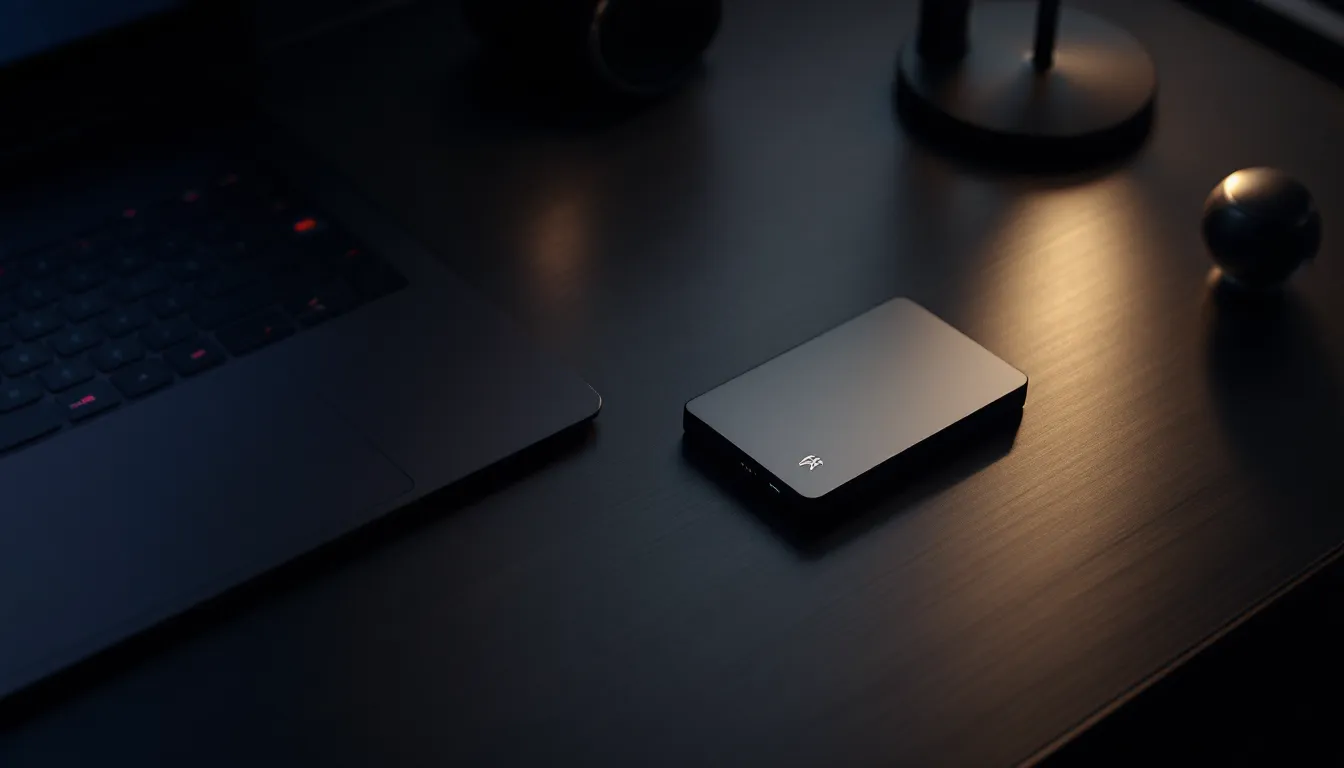
Form factor matters too. Portable SSDs (roughly the size of a deck of cards, weighing under 500g) are perfect for LAN parties, tournaments, or taking your library to a friend’s place. Desktop external drives are bulkier but often cheaper per TB and cooler-running due to larger heatsinks. For laptop gaming, portable SSDs make the most sense, they’re travel-friendly and don’t need extra cooling considerations.
Durability And Temperature Management
Gaming generates sustained activity on your external drive. Look for drives rated for operating temperatures up to 60°C (some claim higher). SSDs with aluminum enclosures dissipate heat better than plastic ones. If you’re running a 4TB external SSD continuously during long gaming sessions, thermal management prevents slowdown or emergency shutdowns.
Durability specs matter too. Check for MTBF (Mean Time Between Failures) ratings, higher is better. Many quality gaming-focused external SSDs carry MTBF ratings of 1.5M to 2M hours. Read reviews for real-world longevity: some drives fail prematurely even though specs. Redundancy is your friend: don’t store your only copy of save files or recordings on a single external drive if it’s critical.
Connection Types: USB 3.0, USB-C, And Thunderbolt
Understanding Interface Speed Differences
Your drive’s physical connection to your laptop determines maximum throughput. Let’s break down the speeds:
- USB 3.0 (5 Gbps): Older standard, theoretically ~625 MB/s. Real-world peaks around 400 MB/s. Acceptable but not ideal for modern gaming.
- USB 3.1 Gen 1 (5 Gbps): Same as USB 3.0. Rebranded for clarity. Still gets the job done but limits drive potential.
- USB 3.1 Gen 2 (10 Gbps): Roughly 1,200 MB/s theoretical, 800–1,000 MB/s real-world. Sweet spot for gaming external SSDs.
- Thunderbolt 3/4 (40 Gbps): Overkill for single external drives but future-proof. Daisy-chain compatible and works with USB-C devices. Premium pricing.
- USB-C: The connector shape. Often paired with USB 3.1 Gen 2 (10 Gbps). Modern laptops predominantly use USB-C, making this the practical choice.
For gaming, USB 3.1 Gen 2 via USB-C is the real-world standard. It balances speed, cost, and compatibility without premium markups. Thunderbolt is excellent if your laptop supports it and your budget allows, but gains diminish for single-drive scenarios.
Compatibility With Your Gaming Laptop
Check your laptop’s available ports before buying. Most 2024+ gaming laptops have Thunderbolt 4 (which is backward compatible with USB-C), but older models might only offer USB 3.0 or USB 3.1. A USB 3.0-only laptop can use a USB 3.1 Gen 2 drive, but you’re bottlenecked to 5 Gbps speeds, the drive’s full potential goes unused.
Adapter considerations: if your laptop lacks native USB-C, you can use a USB-A to USB-C adapter, but expect some speed loss. Direct connections always beat adapters. Also, consider power delivery. High-capacity external SSDs (4TB+) sometimes need external USB power. Ensure your laptop’s USB port provides enough power (usually 5V/500mA minimum, though gaming drives often request 1A). Most gaming laptops’ USB 3.1 ports handle this without issues, but confirm before purchasing.
Top External Hard Drive Options For Gaming Laptops
Portable SSDs For High-Performance Gaming
Portable SSDs dominate the gaming external drive market. They’re fast, compact, and reliable. Here are the standouts for 2026:
Samsung T9: Delivers up to 1,050 MB/s speeds, available in 1TB–4TB capacities. Compact form factor, excellent thermal management via aluminum enclosure, and Samsung’s reputation for reliability make it a favorite among esports players and streamers. Around $80–$300 depending on capacity.
WD Black SN850X: Western Digital’s gaming-focused portable SSD hits 1,050 MB/s read speeds and includes a heatsink specifically designed for heat dissipation. Available up to 4TB. Slightly cheaper than Samsung’s T9, around $70–$280. Compatible with PC, Mac, and consoles.
Crucial X9 Pro: If Thunderbolt is your priority, the X9 Pro offers 1,200 MB/s over Thunderbolt 3, with a rugged design and excellent build quality. Price-competitive at $100–$350. Quieter operation than competitors due to fanless design.
Sabrent Rocket Nano: Budget-friendly portable SSD hitting 550 MB/s, available in 1TB–2TB. At $40–$110, it’s the value pick for gamers on tight budgets. Performance is respectable for casual gaming: esports enthusiasts should consider faster options.
For laptop gaming specifically, pick a portable SSD if you value speed and portability. They run cooler during sustained gaming sessions and don’t require external power, making them travel-friendly.
Traditional External HDDs For Budget-Conscious Gamers
Hard disk drives (HDDs) are the budget route. They’re cheaper per TB but slower, typically 140–160 MB/s real-world transfer speeds. Game transfers take longer, but once a game is installed, load time differences between HDD and SSD are measured in seconds, not milliseconds (unless you’re talking SSD-only AAA engines like Ratchet & Clank).
WD Elements: Reliable, basic external HDD. 2TB–4TB capacity, USB 3.0 connection. Costs $40–$80. No frills, but it works. Good for archiving older games or backups.
Seagate Barracuda Pro: Slightly faster than consumer HDDs, rated for 7200 RPM (vs. 5400 in typical externals). Offers more consistent performance for gaming workflows. Around $70–$120 for 2TB–4TB.
Honestly? For gaming, an external SSD is worth the extra $30–$50 per TB. The speed difference is tangible and compounds over hundreds of game transfers. But if you’re storing 20+ older titles and rarely reinstall, an HDD fills that role adequately.
How To Set Up And Optimize Your External Drive For Gaming
Installation And Formatting Best Practices
First, physically connect your drive. Plug it into a USB 3.1 Gen 2 or Thunderbolt port directly, no hubs if possible, since hubs can reduce throughput. Your laptop should recognize it immediately.
Next, format. Here’s the step-by-step:
- Windows: Right-click the drive → “Format” → choose NTFS (not FAT32, which has a 4GB file size limit, problematic for large games). Keep allocation unit size as “Default.”
- Mac: Connect the drive → open Disk Utility → select the drive → format as APFS or Mac OS Extended depending on your OS version.
Don’t use FAT32 for gaming external drives. NTFS and APFS support large files and maintain faster access patterns over time.
Optional but recommended: enable TRIM support on your external SSD (Windows 10/11 default does this automatically). TRIM keeps SSDs performing consistently by managing free space efficiently.
Organizing Games And Managing Load Times
Organization sounds trivial but impacts quality of life. Create folders for game categories: “Competitive” (Valorant, CS2, Overwatch 2), “Single-Player AAA,” “Indie,” and “Archived.”
When installing large games directly to your external drive:
- Install to the root directory if possible. Deeply nested paths add minor latency.
- Don’t mix hundreds of small files and games on a slow HDD. Fragmentation kills performance on mechanical drives. SSDs don’t suffer fragmentation, so this is less critical.
- Keep 10–15% of drive space free. Drives perform worse when packed beyond 85% capacity.
Load time reality check: games on a fast external SSD load 2–5 seconds slower than internal SSDs due to interface overhead. For most titles, imperceptible. Competitive shooters where every millisecond matters? The internal drive still wins, but the gap is closing as games optimize for SSD streaming.
ProTip: if your laptop has dual storage (NVMe + SATA), consider keeping your most-played competitive titles on internal storage and rotating everything else to external.
Common Mistakes And Troubleshooting Tips
Avoiding Data Loss And Performance Issues
Mistake #1: Unplugging without ejecting. Always safely eject your external drive before disconnecting. Windows/Mac cache write operations, and sudden disconnection can corrupt game installations. Right-click → “Eject” or use the system tray eject button.
Mistake #2: Relying on a single external drive for irreplaceable data. If your drive fails mid-season or tournament, you lose everything. Backup critical save files to cloud storage (OneDrive, Google Drive) or a second drive. Game installations can be re-downloaded: progress files are irreplaceable.
Mistake #3: Ignoring thermal throttling. Sustained gaming on an external drive, especially in warm environments, can cause throttling (speed reduction due to heat). If your drive gets uncomfortably warm to touch (above 60°C), reduce consecutive gaming sessions or improve laptop ventilation. Use a laptop stand that promotes airflow.
Mistake #4: Mixing old and new drives. Slow HDDs and fast SSDs on the same USB hub create bottlenecks. Use dedicated, high-speed connections whenever possible.
Resolving Connectivity And Lag Problems
If your external drive suddenly disconnects or shows lag:
- Check the cable. Frayed or damaged USB cables are common culprits. Swap the cable before troubleshooting further.
- Try a different USB port. Ports can fail or suffer interference. USB 3.1 ports are color-coded (usually blue or red). Stick to those, not USB 2.0 (black) ports.
- Update drivers. Windows sometimes needs chipset updates to maximize USB performance. Check Device Manager → Universal Serial Bus controllers → update drivers if outdated.
- Disable USB Selective Suspend. Windows can aggressively power-down USB devices to save battery. Go to Power Settings → Change Plan Settings → Advanced → USB Selective Suspend and set to “Disabled.”
- Run a SMART check. Both Windows and Mac can assess drive health. On Windows, open Command Prompt (admin) and run
wmic logicaldisk get name, sizeor use third-party tools like CrystalDiskInfo. Early warning signs of failure (high error counts, rising reallocated sectors) warrant immediate backup and replacement.
Lag during gameplay from external drive usually traces back to a USB bottleneck or thermal issues, not the drive itself. Check system temperatures using CPU-Z or HWInfo before assuming drive failure.
Conclusion
An external hard drive for gaming isn’t optional anymore, it’s essential infrastructure for anyone running a modern gaming laptop. The storage demands of 2026 titles make it impossible to manage a decent-sized library with internal drives alone. A fast portable SSD via USB 3.1 Gen 2 or Thunderbolt delivers speed comparable to internal drives at a fraction of the cost of upgrading your laptop’s internals.
Your choice comes down to priorities. Speed-focused? Pick a portable SSD benchmarked on gaming hardware sites like the Samsung T9 or WD Black SN850X. Budget tight? An external HDD works for less demanding titles and backups. Setup matters too, NTFS formatting, regular ejecting, and thermal awareness keep your library healthy and performant long-term.
Gamers juggling competitive play and single-player exploration benefit most from the flexibility external storage provides. You’re no longer choosing between favorite titles: you’re curating a modular library that fits your playstyle. Whether you’re grinding ranked seasons or exploring sprawling open worlds, the right external drive removes friction between you and gaming.