
Your gaming PC is only as good as its worst bottleneck. Whether you’re chasing 240 FPS in competitive shooters or pushing max settings in the latest AAA titles, optimization is the difference between a seamless process and a stuttering nightmare. The good news? You don’t need to drop thousands on new hardware to squeeze out significant performance gains. In 2026, smart optimization strategies, from driver updates to in-game tweaks, can unlock 20-40% more FPS on your existing setup. This guide walks you through exactly how to optimize your PC for gaming, covering everything from hardware upgrades to software tweaks and advanced tuning techniques that competitive and casual gamers alike can carry out today.
Key Takeaways
- Optimizing your PC for gaming can unlock 20-40% more FPS through smart driver updates, Windows tweaks, and in-game settings adjustments without expensive hardware upgrades.
- GPU and CPU bottleneck identification is crucial—monitor utilization rates to determine whether a graphics card or processor upgrade will actually improve your frame rates.
- Rendering upscaling (DLSS, FSR, XESS) delivers 20-40% FPS gains with minimal visual quality loss, making it a free performance win in most modern titles.
- Thermal management through regular dust cleaning and thermal paste replacement every 3-5 years prevents throttling and maintains your hardware’s maximum gaming performance.
- Start optimization with basics: update GPU drivers weekly, enable Game Mode and High Performance power settings, then progressively dial back shadow quality and reflections to hit your target frame rate.
Why PC Optimization Matters For Gaming Performance
Gaming performance isn’t just about frame rates, it’s about consistency, responsiveness, and how your system utilizes every component at its disposal. A 144 Hz monitor means nothing if your GPU can’t maintain stable frame delivery. Input lag, stuttering, and frame drops don’t just frustrate: they directly impact your ability to win gunfights, land skill shots, and enjoy the game you paid for.
PC gaming optimization matters because modern games are resource hogs. Titles like Black Myth: Wukong, Dragon’s Age: The Veilguard, and upcoming AAA releases push GPUs and CPUs hard, often leaving default Windows settings and driver configurations leaving performance on the table. Thermal throttling, driver bugs, background processes, and suboptimal game settings can all tank your FPS without you realizing it.
The optimization process is iterative, too. What works for one game might need tweaking for another. Competitive shooters demand low latency and high frame rates: story-driven games benefit from visual fidelity at the cost of FPS. Understanding why each optimization exists helps you make informed decisions instead of following generic guides that don’t fit your specific setup or gaming style.
The upside: most optimizations cost nothing. Driver updates, Windows tweaks, and in-game settings adjustments are free. Even modest hardware upgrades, adding RAM, swapping to an SSD, offer massive value compared to a full system rebuild.
Hardware Upgrades That Deliver The Biggest Performance Gains
Graphics Card And GPU Considerations
Your GPU is your primary gaming workhorse. When optimizing for gaming performance, a graphics card upgrade delivers the fastest, most noticeable FPS improvement. In 2026, the RTX 5070 and RX 7700 XT remain solid mid-range options, while enthusiasts targeting high refresh rates push RTX 5090 or RX 9070 XT territory.
Before upgrading, understand your GPU’s current bottleneck. If you’re hitting 60 FPS at 1440p but your GPU utilization is only 70-80% while your CPU maxes out, your bottleneck is CPU-bound, not GPU-bound. A new graphics card won’t help much there. Conversely, if your GPU sits at 95-99% utilization and your CPU has headroom, that GPU upgrade will pay dividends.
VRAM matters too. 6 GB is the bare minimum in 2026: 8 GB is standard for 1440p gaming, and 12 GB+ is recommended for 4K or future-proofing. Running out of VRAM forces the GPU to shuffle data between card and system RAM, tanking performance instantly. Sites like DSOGaming publish detailed performance benchmarks broken down by resolution and GPU model, which helps identify exact frame rate expectations before purchasing.
Key metric: At 1440p, ultra settings, aim for your target refresh rate (e.g., 144 FPS for 144 Hz). Don’t overbuy: a GPU that can sustain your monitor’s refresh rate is the sweet spot.
CPU And Processor Performance
The CPU’s role in gaming is underestimated. While the GPU renders frames, the CPU handles game logic, physics, AI, and frame preparation. Older or weaker CPUs create bottlenecks, limiting GPU utilization and capping frame rates artificially.
In 2026, a capable gaming CPU needs strong single-threaded performance (for consistency) and enough cores for modern game engines. Intel’s latest Core Ultra and AMD’s Ryzen 7000 series are solid bets. You don’t need a top-tier workstation chip, a mid-range gaming CPU at 4.0-5.5 GHz handles most titles well. Streaming or content creation? Prioritize multi-threaded performance and consider CPUs with 12+ cores.
Thhermal performance is critical here. A CPU throttling due to heat won’t reach its rated boost clocks, tanking gaming performance. Pair your CPU with an adequate cooler, tower air coolers (Noctua, be quiet.) or mid-range AIOs typically suffice unless you’re overclocking.
Upgrade path: If your CPU is 5+ years old and you’re struggling to hold your target frame rate, a CPU upgrade pairs well with a GPU upgrade for the biggest total gain.
RAM And Storage Speed Optimization
RAM speed and capacity often get overlooked, but they’re foundational. Games routinely use 16 GB+ in 2026, especially with multiple Discord, Chrome, and streaming windows open. 32 GB is becoming the comfort zone for gaming and multitasking: 16 GB is survivable but tight.
Speed matters too. DDR5 has become standard, with 6000 MHz to 7200 MHz being the sweetspot for gaming. Going from 5600 MHz to 7200 MHz DDR5 can net 5-15 FPS in CPU-heavy games like Baldur’s Gate 3. It’s not huge, but paired with other optimizations, it adds up.
Storage speed impacts load times and stuttering. An NVMe SSD (PCIe 4.0 minimum, ideally 5.0) is non-negotiable in 2026. SATA SSDs and hard drives cause loading stutters and eliminate the responsiveness modern games expect. Games should live on NVMe: avoid fragmentation by keeping 10-15% free space on your gaming drive.
Pro tip: Monitor RAM usage during gaming (via Task Manager or specialized tools) to ensure you’re not running low. Consistent performance depends on having headroom.
Software And Driver Optimization Techniques
GPU Driver Updates And Management
Outdated GPU drivers are a silent performance killer. NVIDIA and AMD release driver updates monthly, often patching performance regressions, adding support for new games, and fixing crashes. Staying current is non-negotiable for optimizing Windows 10 for gaming.
NVIDIA’s GeForce Experience and AMD’s Adrenalin software both offer one-click driver updates. You can also update manually via NVIDIA.com or AMD.com if you prefer. New driver releases typically show improvements within the first week: if issues emerge, rolling back is straightforward.
Beyond installation, driver settings matter. NVIDIA’s Control Panel and AMD’s Radeon Settings expose options like power management, vertical sync, and pre-rendered frames that directly impact latency and frame delivery. For competitive gaming (shooters, fighting games), disable vertical sync and set power management to “Prefer Maximum Performance.” For single-player games, “Balanced” or “Adaptive” often works fine.
GPU driver cache bloat can also slow you down. If you notice stuttering or frame drops that seem unrelated to in-game settings, clearing the driver cache (uninstall drivers, clear AppDataNVIDIA or AMD folders, reinstall fresh) sometimes helps.
Action item: Check for driver updates weekly and install them. It takes 5 minutes and can deliver measurable FPS improvements or stability fixes.
Windows Settings For Gaming
Windows 10 (and 11) have a few settings that directly boost gaming performance when optimized correctly. The “Game Mode” toggle, found in Settings > Gaming, should be ON. It prioritizes your game’s resource allocation and reduces system interruptions. Not game-changing, but it helps.
Background processes are performance thieves. Services like Windows Update, antivirus scanning, and cloud sync don’t pause when you game. Services like “Superfetch” and “Search Indexer” historically bloat older systems: they’re less aggressive now but disabling them is harmless. Use Task Manager (Ctrl+Shift+Esc) to monitor what’s running and disable non-essential startup programs.
Power settings matter hugely. If your power plan is set to “Power Saver” or “Balanced,” your CPU won’t hit turbo clocks and GPU won’t deliver max performance. Switch to “High Performance” or create a custom plan that prioritizes performance. This is especially important for laptops, which default to power-saving profiles.
Disable fullscreen optimizations if they cause stuttering (right-click game .exe > Properties > Compatibility tab > toggle “Disable fullscreen optimizations”). DirectX settings depend on the game, but modern titles should use DirectX 12: older games benefit from DirectX 11.
Settings checklist: Game Mode ON, High Performance power plan, background apps minimized, latest chipset drivers installed.
In-Game Settings Adjustments For Maximum FPS
Resolution And Display Settings
Resolution is the single biggest knob to turn for FPS. Jumping from 1440p to 1080p can net 30-50% more frames. The trade-off? Visual clarity. For competitive gaming, many pros run 1080p even on high-end setups to prioritize frame rates and input lag. For single-player immersion, 1440p or 4K makes sense if your hardware sustains your target frame rate.
Refresh rate synchronization also matters. If your monitor is 165 Hz but your GPU delivers 200 FPS, unsynced frames cause screen tearing. VSync locks frame rate to your monitor’s refresh, eliminating tearing but adding input lag. Fast Sync (NVIDIA) or Enhanced Sync (AMD) provide a middle ground. For competitive shooters, many pros disable VSync entirely and accept minor tearing for minimal input lag.
Displayport and HDMI 2.1 support higher refresh rates: older monitors or cables might bottleneck your setup. A 165 Hz monitor over a bad HDMI cable behaves like a 60 Hz monitor. Verify your connection supports your desired refresh rate.
Fielding render upscaling (DLSS, FSR, XESS) is critical in 2026. Rendering at lower resolution and upscaling intelligently nets 20-40% FPS gains with minimal visual cost. DLSS 4 and FSR 3 have become so good that “quality” presets are visually indistinguishable from native rendering. Always test upscaling in your games: it’s usually a free performance win.
Graphics Quality And Rendering Options
Texture quality, shadow detail, reflections, and ambient occlusion are high-impact settings. Turning textures from Ultra to High is a 5-10% FPS hit: dropping to Medium is 15-20%. Shadows are expensive, cascaded shadow resolution and distance matter hugely. Dropping shadow quality from Ultra to Medium often yields 10-15 FPS without noticeably hurting visuals.
Reflections (ray-traced or screen-space) are among the most demanding features in modern games. Cyberpunk 2077, Alan Wake 2, and Star Wars Outlaws lean heavily on real-time reflections. Disabling or downgrading reflection quality nets 15-30 FPS depending on the game.
Ambient occlusion (SSAO, RTAO) adds depth perception but is expensive. Most players won’t notice the difference between High and Off. Same with contact shadows and indirect lighting, turning these off or to lower presets gains frame rate with minimal visual trade-off.
LOD (level of detail) bias can be tweaked in some games. Increasing LOD bias loads higher-detail assets from farther away, improving visuals at a performance cost. Decreasing it limits detail draw distance, useful if you’re struggling to hit frame rate targets.
Advanced Graphics Features And Trade-Offs
Ray tracing is beautiful but expensive. Ray-traced shadows, reflections, and global illumination can halve frame rates on some cards. In 2026, mid-range GPUs struggle with full RT at max settings on demanding titles. Use ray tracing selectively: enable RT shadows and one reflection effect, disable others. Or use upscaling (DLSS Quality + DLSS Frame Gen, or FSR Quality) to offset RT’s cost.
Tessellation adds geometric detail but can be overdone. Disabling tessellation or capping it at medium usually costs minimal visuals for 5-10% FPS gain.
Anisotropic filtering (AF) is cheap, max it out for minimal FPS impact and noticeably sharper textures at angles. Motion blur, bloom, and depth of field are cheap eye candy: they won’t move your FPS much. Disabling them sharpens clarity (helpful for competitive gaming) without hurting performance.
Particle quality and draw distance matter for visual density. Reducing particle count and draw distance in chaotic scenes (explosions, fire) can net 5-15 FPS. CPU-heavy games like Baldur’s Gate 3 benefit from capped particle count.
Optimization workflow: Start at your target resolution and quality preset (e.g., High 1440p). If you’re under your target FPS, dial back shadows first (cheap visually, expensive in FPS). Then textures, then reflections. Test upscaling alongside each tweak. Most games reach your target with moderate tweaks to 3-4 settings.
System Maintenance And Health Checks
Cleaning Dust And Improving Thermal Performance
Dust buildup in fans and heatsinks throttles performance silently. A GPU running at 85°C throttles its clocks, losing FPS you’ve already paid for. CPUs do the same. Thermal paste degradation over 3-5 years also hurts heat transfer. Simple maintenance prevents this.
Physical cleaning is straightforward: power down, open the case, use compressed air to blow dust from GPU fans, CPU cooler, and case fans. Don’t spin the fans while blowing air: this can damage bearings. A soft brush helps dislodge stubborn dust. Do this every 6-12 months depending on environment (dusty rooms need more frequent cleaning).
Thermal paste replacement on the CPU is a one-time task if done right. High-quality thermal paste (Arctic Silver, Thermal Grizzly) maintains performance far longer than pre-applied paste. Replacing CPU thermal paste every 3-5 years keeps temperatures optimal. GPU thermal paste is trickier (often requires disassembly) but doable if you’re comfortable with hardware.
Cable management and airflow matter too. Messy cables block intake and exhaust, trapping hot air inside the case. Reorganizing cables to maintain clear airflow paths costs nothing and can lower overall system temperatures by 3-5°C.
Case fans should pull cool air in front, exhaust out back and top. Ensure positive airflow isn’t blocked by GPU sag (use a GPU support bracket) or obstructed by peripherals. Optimal airflow keeps all components cooler, reducing thermal throttling.
Monitoring Temperatures And Resource Usage
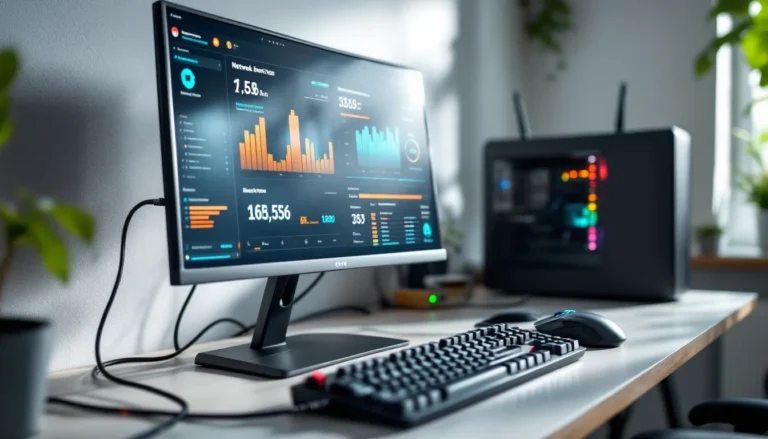
You can’t optimize what you don’t measure. Monitoring tools reveal where your bottleneck lies and whether thermal throttling is limiting performance.
HWiNFO and GPU-Z (both free) display real-time temperatures, clock speeds, and power draw. Run these alongside gaming to spot throttling (clock speeds dropping mid-game = thermal issue) or power limit throttling (power draw caps = PSU or power target issue).
Task Manager (Ctrl+Shift+Esc) shows CPU, GPU, and RAM usage in real-time. If your CPU hits 100% while GPU is at 70%, you’re CPU-bound. If your GPU maxes out and CPU has headroom, you’re GPU-bound. Knowing your bottleneck guides upgrade decisions.
In-game overlay tools like NVIDIA’s GeForce Experience and AMD’s ReLive show FPS and temperatures without alt-tabbing. Enable these during gameplay to spot frame drops or thermal spikes correlating with performance dips.
Set temperature alerts. Most components thermal-throttle around 85-90°C (GPUs) or 95-100°C (CPUs). If you’re consistently hitting these, cleaning or thermal paste replacement is needed. PC Gamer’s hardware reviews often include detailed thermal benchmarks for specific GPUs and cooling solutions, offering context for what’s normal in your setup.
Maintenance schedule: Monitor weekly during gaming, physically clean dust quarterly, replace thermal paste every 3-5 years, check power draw if thermal throttling occurs.
Advanced Optimization Strategies For Power Users
Overclocking And Advanced Tuning
Overclocking pushes your GPU and CPU beyond stock clocks, squeezing extra performance. It’s not as risky as it sounds, modern hardware has safeguards and manufacturers bin chips conservatively. A modest 5-10% GPU clock bump can net 3-7% FPS gain with minimal heat and power increase. CPU overclocking is trickier but nets higher returns in CPU-bound games.
GPU overclocking is accessible via NVIDIA’s GeForce Experience (OC Scanner) or AMD’s Adrenalin software. These tools auto-overclock, testing stability and backing off if crashes occur. Conservative auto-OC typically gains 5-10% FPS. Manual OC (increasing GPU core clock and memory clock in steps) requires monitoring stability (run Unigine Superposition or Port Royal benchmarks for 30 minutes post-change) but allows fine-tuning.
Undervolting is the safer, underrated sibling of overclocking. Reducing voltage delivered to the GPU (10-25 mV reduction) lowers power draw and heat without losing performance, sometimes even gaining FPS due to reduced thermal throttling. Tools like NVIDIA’s Precision X1 and MorePowerTool (AMD) enable this. Undervolting nets the same FPS gains as overclocking but with lower temperatures and power draw.
CPU overclocking requires BIOS access and is motherboard-dependent. Air-cooled CPUs typically handle 100-200 MHz all-core boosts: silicon lottery (chip quality variation) determines your ceiling. Unlocked CPUs (K-series Intel, X-series AMD) are required. Test stability with Prime95 or Cinebench: if it crashes, back off. CPUs are durable but pushing too hard risks failure.
Pro tip: Undervolting offers better risk/reward than aggressive overclocking. Start there, then explore GPU clock bumps if you’re comfortable.
Custom Game Profiles And Launch Parameters
Managing different games’ settings is tedious when each demands different optimization. Custom profiles let you save and load settings per game automatically.
NVIDIA’s GeForce Experience lets you set per-game optimization profiles, resolution, refresh rate, DLSS preference, and graphics presets all apply automatically when launching that game. AMD’s Adrenalin offers similar per-game profiles. Setting these up takes 5 minutes per game and eliminates manual tweaking.
Launch parameters are hidden command-line flags that modify game behavior. Not all games support them, but popular titles (Valorant, CS2, Dota 2) do. Examples: -fullscreen forces fullscreen mode, -novid skips intro videos, -high prioritizes process priority. Sites like How-To Geek cover launch parameters for specific games, check before guessing.
Graphics API (DirectX 11 vs. 12, Vulkan) can be game-specific. Some games run better on DX11, others on DX12 or Vulkan. Test both if the game offers the choice: benchmark 2-3 minutes in each to spot which delivers higher FPS with acceptable stuttering.
Monitor settings via nvidia-smi (NVIDIA) command line tool to log GPU thermals and clocks during gameplay, then review logs post-game to spot throttling patterns. This reveals whether your optimization was thermal-limited or power-limited.
Advanced workflow: Create per-game profiles, test launch parameters if available, benchmark with monitoring enabled, then save the optimal configuration for that title.
Conclusion
Optimizing your PC for gaming isn’t a one-time task, it’s an ongoing process as new drivers, games, and hardware emerge. The good news is that most gains come from low-hanging fruit: driver updates, Windows tweaks, and in-game setting adjustments cost nothing and net 10-20% FPS improvements on average.
Start with the basics: ensure your drivers are current, monitor your temperatures and resource usage, and dial in your in-game settings to hit your target frame rate at your preferred resolution. From there, explore hardware upgrades if bottlenecks emerge, experiment with overclocking or undervolting if you’re comfortable, and fine-tune per-game profiles to maximize consistency.
The PC gaming landscape in 2026 is competitive. Games demand more: expectations for smooth, responsive gameplay have risen. But your current hardware likely has more headroom than you realize. Smart optimization unlocks that headroom, turning a “just okay” experience into one where you’re hitting your target frame rate, your system stays cool, and you can focus on the game instead of stuttering and lag.
Optimization takes effort, but the payoff, higher frame rates, lower latency, better visuals, makes every tweak worth it.