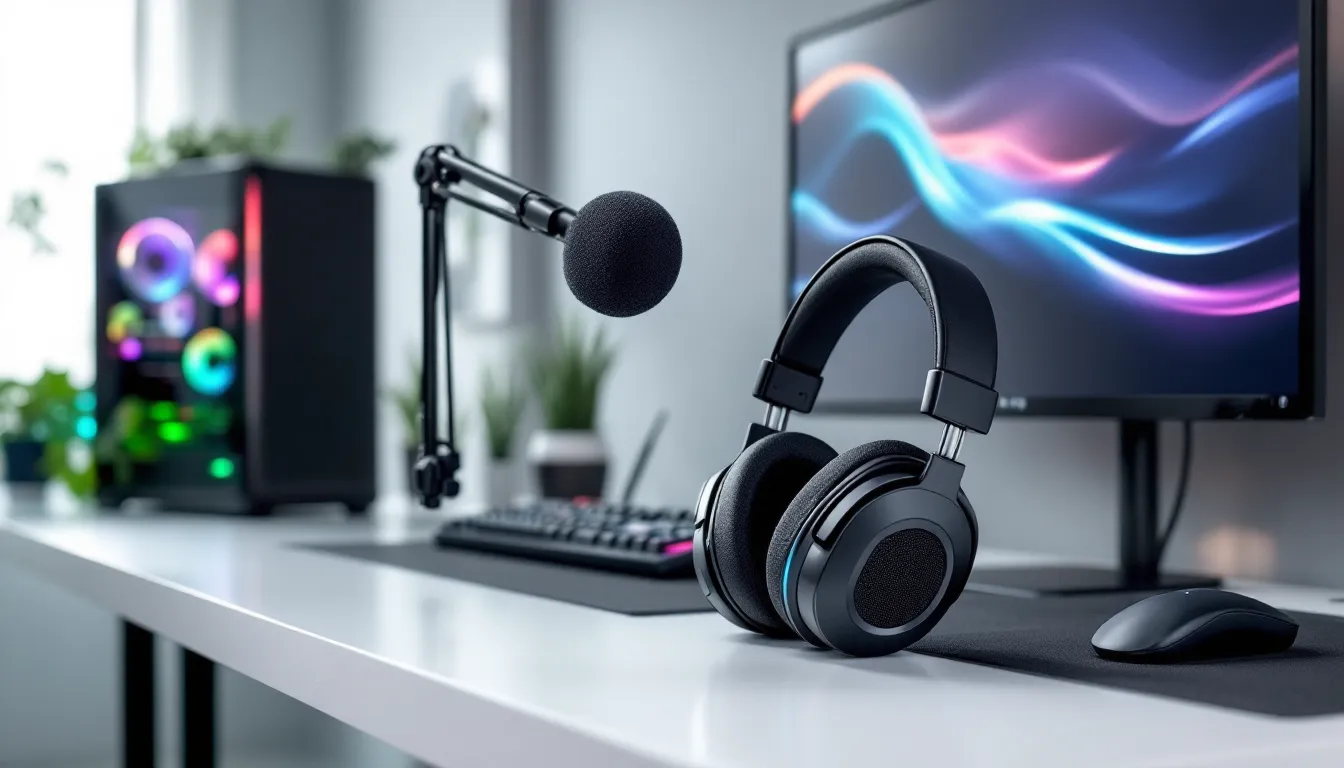

A solid gaming headset is only half the battle, the microphone is where you actually communicate with your team, streamers reach their audience, and competitive players prove they’ve got the callouts to match their aim. Yet when you’re shopping for a new headset, most people focus entirely on sound quality and comfort, treating the mic like an afterthought. That’s a mistake. A poor microphone can tank your comms, make you sound like you’re underwater, and frustrate everyone in your Discord or ranked lobby. Whether you’re grinding ranked matches, streaming your gameplay, or just vibing in casual multiplayer, you need a gaming headset with a microphone that actually delivers. This guide breaks down what separates a mediocre mic from one that’ll make your teammates actually want to hear from you, the exact features worth paying attention to, and the best gaming headsets with quality microphones available right now in 2026.
Key Takeaways
- Gaming headsets with good mics prioritize noise rejection and vocal clarity over overall sound range, with cardioid microphones being the industry standard for eliminating background noise.
- A properly positioned microphone boom (2-4 inches from your mouth, slightly off-center) combined with correct noise gate settings (-40dB starting point) makes more difference than hardware alone.
- Competitive players should invest $250+ in headsets like the SteelSeries Arctis Pro, while casual gamers get excellent value from the Kingston HyperX Cloud Stinger 2 at under $100.
- Streamers benefit most from a hybrid setup pairing a gaming headset with a dedicated standalone microphone like the Audio-Technica AT2020USB+, rather than relying on a single headset for both gameplay and stream audio.
- Console and mobile gaming have stricter microphone limitations compared to PC, requiring platform-specific certification and hardware-based noise suppression rather than software optimization.
- Testing your gaming headset’s microphone through Discord’s voice test, platform-level audio indicators, and recording software reveals clarity issues before they impact competitive play or stream quality.
Why Microphone Quality Matters in Gaming
Your microphone is your voice in the game. If it’s bad, your teammates judge the entire experience through audio quality that sounds like you’re calling in from a 2005 webcam. A clean, clear mic isn’t vanity, it’s functional.
In competitive multiplayer, communication is DPS. Fast callouts, enemy positions, ability cooldowns, all of this travels through a microphone. If your audio is clipped, distorted, or drowning in background noise, you’re handicapping your team’s ability to react. Pros know this: they invest heavily in mic quality because a 100ms delay in understanding a call due to audio compression can flip round outcomes.
For streamers and content creators, microphone quality directly impacts audience retention. Viewers will forgive a lot, lower frame rates, older games, rough setups, but they’ll click away instantly from tinny, noisy, or hard-to-understand audio. Your mic is part of your personal brand.
Casual players benefit too. If you’re chatting with friends in multiplayer, you want to sound like yourself, not a compressed robot. A good mic removes friction from social gaming, makes the experience feel natural, and honestly just makes gameplay more enjoyable when comms don’t feel like a chore.
The hardware matters, but so does the environment and how you use it. A high-end mic positioned poorly or drowning in room noise will sound worse than a mid-tier headset with proper placement and noise control. This is why you’ll see pros sometimes swapping between different headsets, they’ve optimized their entire setup around mic placement, room treatment, and software settings.
Key Features to Look for in a Gaming Headset Mic
Noise Cancellation and Noise Gate Technology
Background noise is your biggest enemy. Your keyboard clacking, room fans, roommates, pets, traffic outside, all of this gets picked up by a sensitive microphone and broadcast to everyone. Modern gaming headsets handle this in two ways: hardware noise cancellation (the mic itself is directional and rejects side/rear noise) and software noise suppression (algorithms filter out constant background hum).
Noise gates are the workhorse feature here. A noise gate mutes your mic when you’re not talking, or when the audio falls below a certain threshold. Set it right, and it’s invisible, you press to talk or unmute without thinking. Set it wrong, and it cuts off the start of your sentences or mutes you when you’re trying to call something out quietly.
Look for headsets with adjustable noise gate sensitivity. Fixed gates are frustrating: you want control. Also check if the headset uses Active Noise Cancellation (ANC) on the microphone input specifically, not just on the speaker side. Some headsets have excellent speaker ANC but mediocre mic noise reduction.
Microphone Frequency Response and Clarity
Frequency response tells you the range of sound your mic captures. A headset mic with a tight, optimized response (usually around 100Hz–16kHz for gaming) will sound cleaner and more natural than one trying to capture everything from rumbling bass to high-frequency noise.
In practical terms, you want clarity in the human voice range. Mids and upper-mids (roughly 1kHz–4kHz) are where speech intelligibility lives. If a headset mic has a weak response in this range, you’ll sound hollow or distant even if the overall setup is good. Conversely, a mid-forward mic can sometimes sound harsh, so balance matters.
The spec sheet might list 20Hz–20kHz response, but that doesn’t mean the mic is good across that whole range. Grab any reviews that include frequency response graphs, or better yet, listen to sample recordings if the manufacturer provides them. You’re listening for clarity, not low-end thump.
Microphone Type: Cardioid vs. Omnidirectional
Cardioid is the standard for gaming headsets. It’s heart-shaped in its pickup pattern, meaning it’s most sensitive in front and rejects sound from the sides and rear. This is ideal for eliminating background noise and focusing on your voice. Nearly every good gaming headset mic is cardioid.
Omnidirectional mics pick up sound equally from all directions. They’re rarely used in gaming headsets for good reason, they’ll pick up everything in the room, making them noise magnets. Some all-in-one headsets or conferencing gear uses omnidirectional mics, but for gaming, you want cardioid.
There’s also supercardioid (even tighter pickup, more rejection of sides but some rear pickup) and hypercardioid (extreme focus, possible feedback issues if you move it around). Most gamers are fine with standard cardioid: it’s the sweet spot for isolation without the complications of narrower patterns.
Top Gaming Headsets With Excellent Microphones
Premium Options for Competitive Gaming
HyperX Cloud Orbit S sits in the premium tier with a detachable microphone that delivers clarity without harshness. The mic picks up at 50–16kHz with solid presence in the vocal range. If you’re in a competitive scene, the audio isolation and noise suppression put it among the best, though the cost ($300+) requires serious commitment.
SteelSeries Arctis Pro is a favorite among esports teams and pros. The ClearCast microphone uses a cardioid pattern with excellent noise rejection. Many pro setups run this headset, and the mic quality justifies the professional price tag. The microphone even has removable boom arm options if you want to upgrade further.
Audio-Technica AT2020USB+ is often paired with gaming headsets for those pursuing serious content creation. It’s technically a standalone condenser mic, not a headset, but many streamers layer it with a gaming headset for comms while using the AT2020 for stream audio. If you’re that committed to mic quality, this is the gold standard.
Best Value Headsets With Quality Mics
SCUF H7 Wireless punches above its weight at around $180–200. The microphone isn’t quite at premium level, but it’s clean, has solid noise rejection, and the wireless connection doesn’t introduce latency. Solid choice if you’re building a balanced setup without dropping $300+ on a headset.
Corsair HS80 RGB Wireless offers great value around $150–180. The microphone uses a cardioid pattern with decent noise suppression. It’s not the most character-laden mic, but it’s neutral and reliable, which is what you want in a workhorse headset.
Kingston HyperX Cloud Stinger 2 is the budget king, sitting around $80–100. The microphone won’t blow you away, but it’s serviceable for casual multiplayer and won’t embarrass you in voice chat. If you’re getting started with competitive gaming and want to spend smart before upgrading later, this is a no-brainer.
Wireless Headsets With Strong Microphone Performance
Wireless headsets introduce complexity to microphone performance because you’re dealing with Bluetooth codecs, latency, and potentially interference. The best ones minimize these issues.
SteelSeries Arctis Nova Pro Wireless ($329) pairs the excellent ClearCast microphone with rock-solid 2.4GHz wireless. No Bluetooth compression artifacts here: the proprietary connection keeps the microphone signal clean. This is the wireless mic headset for competitive players who won’t tolerate latency or quality loss.
Corsair Virtuoso RGB Wireless ($160–180) uses a similar approach with a 2.4GHz dongle. The microphone is clear and the wireless implementation is stable. Many raiders and esports teams use this, especially in larger organizations where price-to-performance matters.
Razer BlackShark V2 Pro ($180–200) is built for esports and uses a cardioid mic with solid noise cancellation. Razer’s Hyperclear microphone technology filters background noise and delivers presence without harshness. The wireless version is particularly useful for players who move around a lot (chair adjustments, standing during tense moments, pacing).
Microphone Performance Across Different Gaming Scenarios
Esports and Competitive Multiplayer
Competitive gamers have unforgiving standards. Callouts need to be instant and crystal clear. Any audio compression, latency, or background noise is a distraction. If you’re grinding ranked or playing in an organized team, you need a microphone that delivers under pressure.
Prioritize these headsets: SteelSeries Arctis Pro, HyperX Cloud Orbit S, or Corsair Virtuoso RGB Wireless. Each has been vetted by esports organizations. Check ProSettings for actual pro player gear setups if you want to see what’s winning at the highest levels. The pros aren’t sponsored into bad audio, they choose based on performance.
Settings matter as much as hardware. You’ll want a noise gate set at around -40dB to -35dB (depends on your mic and environment), and you should test your mic before every ranked session or scrim to catch issues early.
Casual Gaming and Social Multiplayer
Casual players have more flexibility. You’re not making frame-perfect callouts, and your audience is friends who’ll tolerate some background noise. The emphasis shifts to comfort and value.
The Kingston HyperX Cloud Stinger 2 is legitimately good here. It’s comfortable for long sessions, the microphone is clear enough for group chat, and you’re not overpaying for features you don’t use. Wireless options like the Corsair HS80 are also solid if you like the freedom of movement.
For pure social gaming with friends, even mid-tier gaming headsets with basic noise gates will work fine. The key is having some noise reduction, a headset with zero noise management will degrade quickly as ambient noise builds during long sessions.
Streaming and Content Creation
Streamers need a different calculus. Your audience hears your mic audio constantly, and in modern streaming, many viewers are watching for personality and commentary, not just gameplay. A bad mic is a deal-breaker.
Many streamers use a hybrid approach: a gaming headset for monitoring and comms, paired with a standalone microphone for stream audio. RTINGS has detailed reviews comparing headset mic quality to standalone solutions if you want to see objective measurements.
If you’re committed to streaming, consider the Audio-Technica AT2020USB+ or Shure SM7B (used by Twitch streamers and podcasters alike) as your primary mic, with a gaming headset for latency-free game audio and communication with moderators or co-streamers. This setup eliminates the compromise of trying to find one headset that does everything perfectly.
For streamers who want everything in one headset, the SteelSeries Arctis Pro or HyperX Cloud Orbit S are your best bets. They’ll deliver respectable stream audio without requiring a second mic investment.
PC vs. Console vs. Mobile: Headset Compatibility and Mic Features
Your platform affects microphone performance more than most players realize.
PC gaming gives you the most flexibility and control. You can adjust driver settings, use software noise gates, route audio but you want, and swap microphones easily. Most premium gaming headsets are optimized for PC. You’ll find PCMag reviews covering both gaming laptops and peripheral compatibility if you’re building a full system. On PC, you can layer multiple headsets and audio software without latency issues, which is why pro setups are so sophisticated.
Console gaming (PS5, Xbox Series X
|
S) has limitations. Headsets need to work natively without drivers. Noise suppression is typically handled by the headset’s hardware, not software. If you’re playing on console, look for headsets specifically certified for your platform. Some headsets work cross-platform (USB receiver works on console if they support USB audio), but not all. Always confirm compatibility before buying. Console players can’t adjust microphone driver settings, so you’re relying on the headset’s onboard quality and noise rejection.
Mobile gaming is trickier. Bluetooth introduces latency and codec compression, which affects mic quality. If you’re streaming or content creating on mobile (yes, some streamers do this), invest in a Bluetooth headset with a strong microphone codec like aptX or LDAC. Gaming headsets designed for PC/console usually don’t translate well to mobile because they prioritize lower latency over Bluetooth efficiency.
Cross-platform headsets exist, the SteelSeries Arctis Nova Pro Wireless works on PC, console, and mobile, though performance varies. If you’re platform-hopping, confirm the headset supports all your devices before committing. Most premium headsets are PC-first, with console compatibility as a secondary feature.
How to Test and Optimize Your Gaming Headset Microphone
Testing Microphone Quality and Clarity
Never just assume your mic is working well. Test it properly.
Discord test: Use Discord’s voice settings to record yourself. Speak naturally, vary your volume, and play back the recording. You’re listening for clarity, any distortion or clipping at normal speech volume, and whether the mic picks up unwanted background noise. Discord’s built-in test is free and honestly pretty useful.
Platform-native tests: Most platforms (Windows, macOS, console) have built-in microphone level indicators. Fire one up and watch the levels while you talk. You want peaks around -6dB to -3dB for clean audio. If you’re clipping into the red constantly, your mic is positioned too close or your gain is too high.
Recording software: Use a program like Audacity (free) or OBS (free) to record a few seconds of yourself talking, then play it back through headphones. This eliminates room acoustics and speaker issues, letting you hear exactly what others are hearing. Do this before important ranked sessions or streams.
Software Settings and Driver Optimization
Your headset manufacturer probably released driver software. Install it. This isn’t bloatware, it’s where noise gate sensitivity, microphone monitoring, and frequency adjustment live.
For Windows PC: Check Device Manager → Sound Input/Output to confirm your headset is the default device. Right-click your headset microphone → Properties → Advanced and look for Noise Suppression and Acoustic Echo Cancellation toggles. Windows built-in options are basic but useful. Then open your headset’s manufacturer software (SteelSeries Engine, Corsair iCUE, Razer Synapse, etc.) and tweak noise gate sensitivity. Start conservative, you’d rather have some background noise than cut off the start of your callouts.
For console: You’re limited to built-in audio settings. Navigate to Settings → Sound → Input/Output and check microphone levels. Most consoles have basic noise suppression you can toggle. Test after enabling it: sometimes aggressive noise suppression makes your voice sound weird.
For macOS: Similar to Windows. System Preferences → Sound → Input, then select your headset. Check for Input Level calibration. Use your headset’s manufacturer software if available, it usually provides more options than the OS does.
The key insight: test after each software change. One person’s “perfect” noise gate is another’s disaster. What works for a quiet home office doesn’t work for a room with A/C running.
Common Microphone Issues and How to Fix Them
Picking Up Background Noise
If your teammates constantly say “we can hear your fan” or “mute your keyboard,” you have a noise problem.
First step: Check microphone position. The mic boom should be 2-4 inches from your mouth, slightly to the side (not directly in front). This distance reduces plosives (hard “P” and “B” sounds that cause distortion) and positioning off-center naturally rejects side noise. If your headset’s boom is positioned in a weird angle, adjust it.
Second: Check your noise gate settings. If it’s set too aggressive (like -50dB), it’s trying to suppress legitimate speech. If it’s too gentle (like -15dB), it picks up every keystroke. Start at -40dB and test. Adjust in 5dB increments until background noise stops but your normal talking voice still comes through clearly.
Third: Physical isolation helps. A cheap foam desk pad under your keyboard reduces clacking. If your room has a loud AC unit or fan, position your desk away from it, or run the fan lower during gaming sessions. Some streamers use acoustic panels behind their microphone, which looks overkill but actually works.
Last resort: Enable system-level noise suppression in your OS or Discord settings. Windows 11 has Noise Suppression in Sound Settings, and Discord has its own noise suppression toggle. These are aggressive and can make you sound slightly robotic, but they’re nuclear options when nothing else works.
Low Volume or Muffled Sound
If you’re constantly asking people to unmute you or they say you’re too quiet, the issue is usually gain or positioning.
Check levels first: In Discord or your OS audio input settings, speak at normal volume and watch the levels. You want peaks around -6dB to -3dB. If you’re topping out at -12dB, your mic gain is too low. Most headsets have a dedicated gain knob or software slider, crank it up. If there’s no hardware gain adjustment, check your OS microphone settings. On Windows, right-click the mic → Properties → Levels, and increase the Microphone level slider.
Muffled audio is usually boom position. If the boom is too far from your mouth or pointing downward, your voice loses clarity. Adjust it to be roughly parallel with your mouth at 2-4 inches distance. Test immediately after adjusting.
If boosting gain adds noise: You have two options. Option one: deal with slightly lower gain and ask teammates to turn their Discord volume up slightly, not ideal but functional. Option two: move your microphone closer to your mouth (within reason: too close causes plosive distortion) to pick up stronger signal. The sweet spot is usually 3 inches, slightly to the side.
If the mic cuts out intermittently: Check your USB connection (if wired). A loose USB cable causes random disconnections. If it’s wireless, check for interference, move your 2.4GHz router away from your headset, or reduce distance between your headset and receiver.
Budget Breakdown: What You Should Spend
Under $100: Expect serviceable audio and microphones that get the job done without embarrassing you. The Kingston HyperX Cloud Stinger 2 ($80–100) sits here and is genuinely solid. Microphones at this price have basic noise rejection but won’t match premium options. Good entry point for casual players or budget-conscious competitors.
$100–200: This is the sweet spot for most gamers. You’re getting reliable wireless or wired headsets with decent microphones, solid build quality, and features like surround sound. The Corsair Virtuoso RGB Wireless ($160–180) and Razer BlackShark V2 Pro ($180–200) deliver good bang-for-buck here. Microphone quality jumps noticeably from the budget tier.
$200–300: Premium territory. Headsets like the SteelSeries Arctis Pro ($250+) and HyperX Cloud Orbit S ($300+) deliver excellent microphones used by esports teams and streamers. If you’re serious about competitive gaming or streaming, this is where you stop compromising. You’re paying for proven mic performance, not just marketing.
$300+: Diminishing returns kick in. You’re paying for luxury materials, specialized features, or brand prestige. For pure microphone quality, investing $300+ in a standalone mic (like the Audio-Technica AT2020USB+) paired with a $150 gaming headset often outperforms a single $400 gaming headset. If you’re creating content professionally, this split approach makes sense.
The meta advice: For gaming, $150–200 covers your needs. For streaming, pair a $150 gaming headset with a $200+ standalone microphone. For esports-level play, $250+ gaming headset with nothing else needed. Spending more doesn’t always mean better gaming audio, it means better everything else (looks, build quality, extra features).
Conclusion
Your gaming headset’s microphone isn’t an afterthought, it’s your voice in the game. From competitive callouts to casual chat to streaming content, a good mic is the difference between blending into your team and being the person everyone actually wants to hear from.
The best headset for your microphone needs depends on your platform, budget, and use case. Competitive players should prioritize noise rejection and clarity, models like the SteelSeries Arctis Pro or HyperX Cloud Orbit S are proven winners. Casual gamers can save money with the Kingston HyperX Cloud Stinger 2 without sacrificing too much quality. Streamers benefit from either a premium gaming headset or a hybrid setup with a dedicated microphone.
Beyond picking the right hardware, remember that positioning, room treatment, and software settings matter enormously. A $200 headset with terrible noise gate tuning will sound worse than a $150 headset with proper optimization. Test your microphone regularly, adjust your noise gate sensitivity until you find the sweet spot, and don’t settle for audio you wouldn’t want to hear from your own teammates.
The gaming landscape keeps evolving, but one thing stays constant: nobody wants to play with someone they can’t hear clearly. Invest accordingly.